A design companion for KiCad that streamlines PCB creation.
- Figure out which part you need
- Hunt down the right datasheet
- Read 20+ pages for the wiring
- Hand-place the IC and every passive
- Wire it into your existing nets
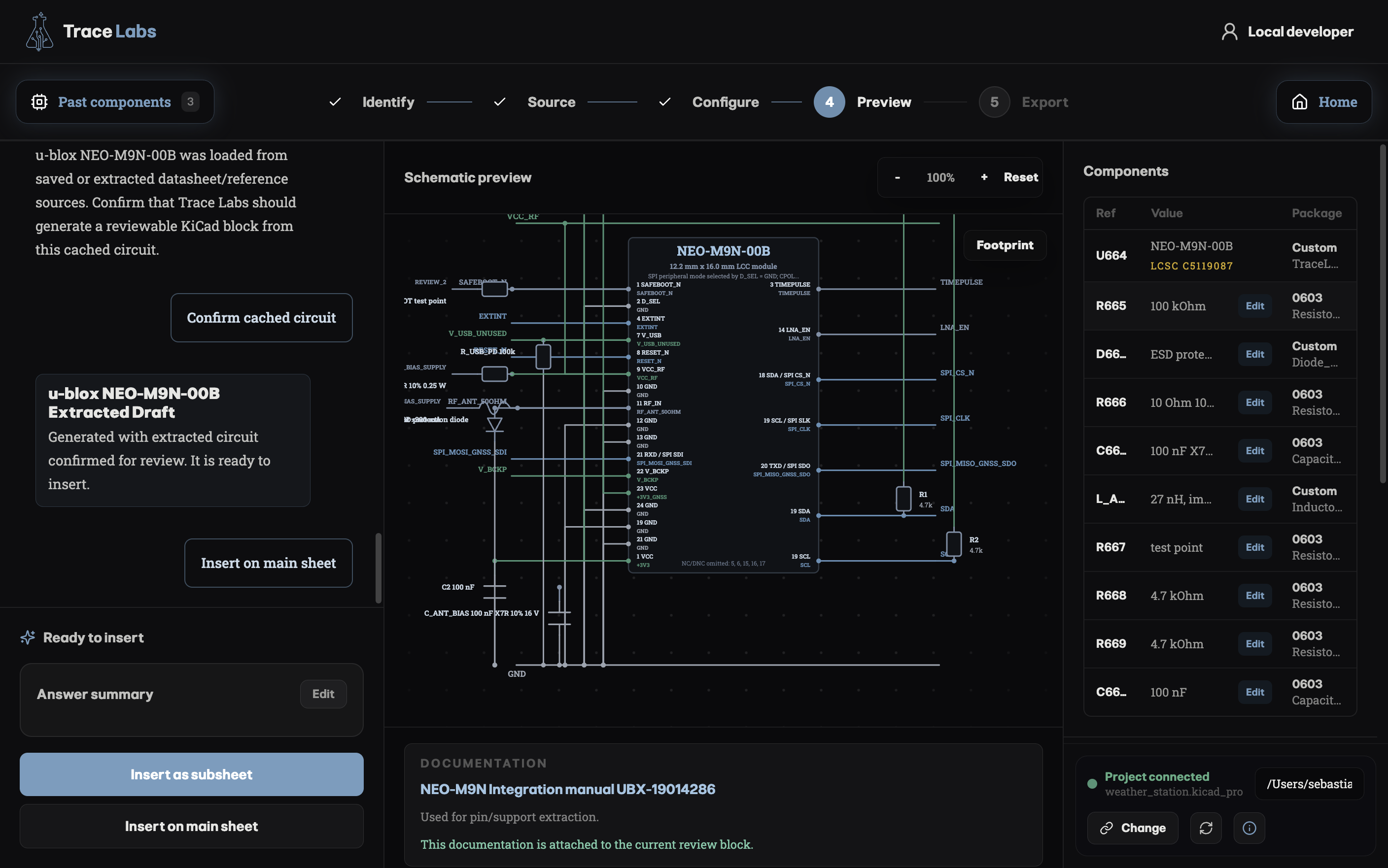
From a sentence to a wired block
It is the same flow you see in the app, every time. Predictable, and you can stop or edit at any step.
Identify
You describe the part in plain English. Trace Labs figures out exactly which component you mean and the canonical way to wire it.
Source
It reads your linked KiCad project — existing rails, buses and nets — and pulls the matching reference design and datasheet.
Configure
A short stack of decisions — voltage, interface, options — with sensible defaults pre-selected. Answer only what matters.
Preview
See the full block before anything touches your file — inspect both the schematic and the footprint of the chip, plus passives, named nets, and warnings worth a second look.
Export
Commit it into your main schematic or drop it in as a separate sub-schematic file. KiCad opens with the block in place.
Main features
The point is not to wire things behind your back. It is to do the tedious part fast, then hand you a block you can actually verify.
Live project context
Trace Labs reads your entire current schematic as context — the power supplies, buses, nets and passives you already have — so new blocks reuse what's there instead of dropping in a generic, disconnected snippet.
Sanity-check warnings
Anything ambiguous or risky is flagged in amber before you commit — never silently guessed.
Cited assumptions
Each value and choice links back to the datasheet page it came from, so you can confirm in one click.
Right parts, right values
Decoupling caps, pull-ups and footprints are chosen to match the IC and your design — not pasted from a template.
Native KiCad output
The result is real KiCad — proper symbols, nets and hierarchy. No lossy import step, no cleanup afterward.
Drop it inline, or as its own sub-schematic
Before export, you choose how the block joins your project. Trace Labs then opens KiCad with it already in place — no manual placement, no copy-paste.
Simple plans, free to start
Hobbyist
For personal boards and learning.
- Common sensors & ICs
- Inline + sub-schematic export
- Datasheet citations
- Weekly block allowance
Pro
Most popularFor working hardware engineers.
- Higher block allowance
- Full component library
- Project-wide context & nets
- Priority recipe updates
- Warning & ERC checks
Studio
For studios and EE teams.
- Everything in Pro
- Largest block allowance
- Shared part recipes
- Org-wide design rules
- Priority support
Hit your allowance before the period resets? Top up with tokens — pay-as-you-go credit for the odd extra small task, no plan change needed.
Download Trace Labs
Grab the desktop app and KiCad add-on for your platform, then connect it to your project and start describing parts.
Windows: you may see a blue “Windows protected your PC” screen when you run the installer — click More info, then Run anyway. This is expected for a new, unsigned app.
Works with KiCad 8 and up. Free to start, no credit card required.
Get the KiCad add-on
The add-on links Trace Labs to KiCad so blocks land straight in your project. Grab the package, then install it from inside KiCad.
Download KiCad PluginInstall via KiCad → Plugin and Content Manager → Install from File
- 1Download the add-on files using the button above.
- 2Open KiCad.
- 3Press “Plugin and Content Manager”.
- 4Choose “Install from File…”.
- 5Select the file you just downloaded — done.